
I spotted this lovely vintage 1973 Dodge Charger on a bike cycle ride in the suburbs to Copenhagen.


I spotted this lovely vintage 1973 Dodge Charger on a bike cycle ride in the suburbs to Copenhagen.
Some of my pictures and video clips from the Copenhagen pride parade and street party 2026. My focus was on capturing individual contributions, that demonstrate diversity, expression and courage, that drives this huge public event.











































































I studied the route of the parade and marked interesting spots for photography. I used a high quality handheld digital camera with a high zoom lens and a high quality semi-snapshot camera. I used an optimal balance between high speed exposure and depth of field. I used my own custom in-camera image settings for capturing true colors as seen on site. I did not not apply any editing, filters nor generative artificial intelligence to the pictures.
If you would like high resolution prints or digital copies of one or more of my pictures, or would like to use or share them, then feel free to contact me.
If you would like me to a portrait photo shoot, cover an event or other kind of photography services, feel free to contact me. I also offer adult content photography services.
Kreidler Florett, Puch Grand Prix, Puch Maxi, Puch Monza, Puch MS-50, Puch VZ-50, Suzuki Samurai DM-50, Velo Solex, Yamaha FS1…

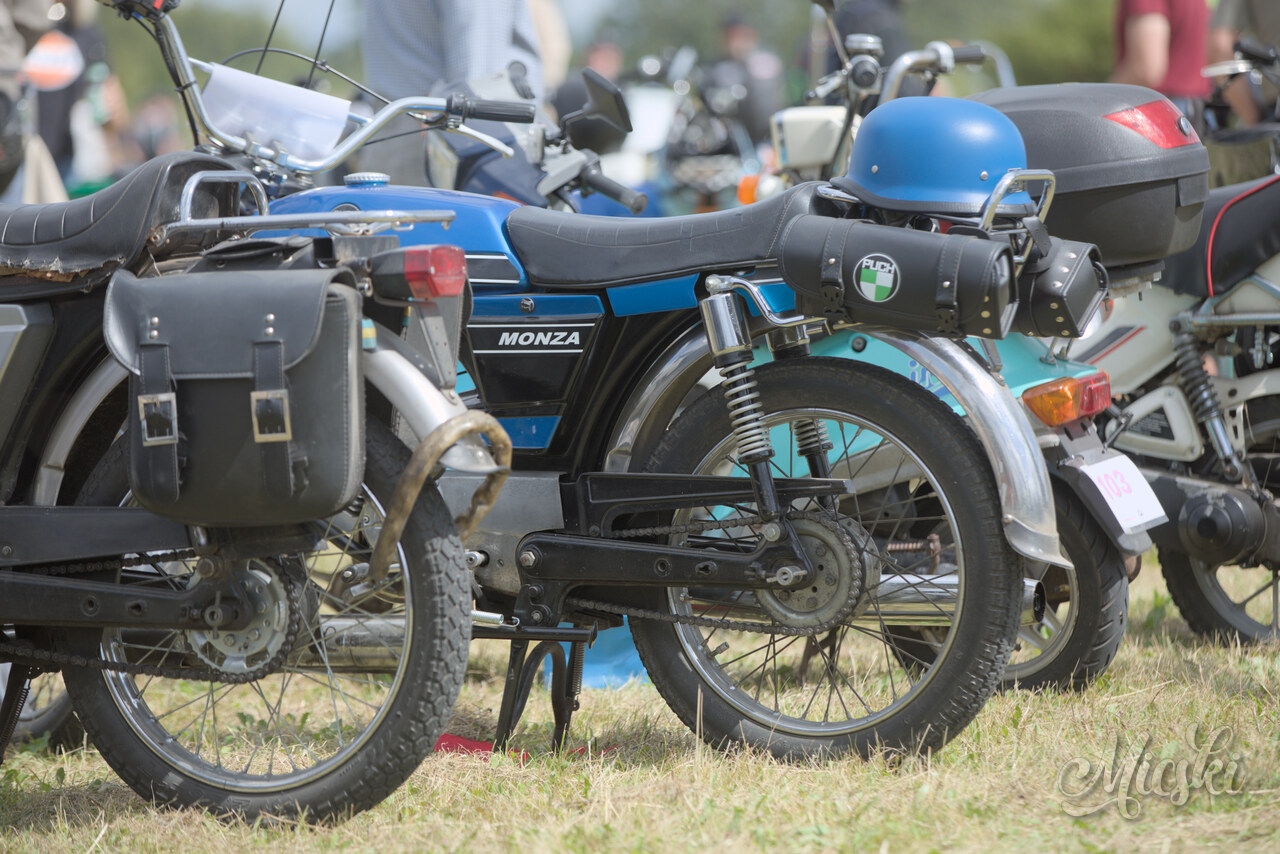



































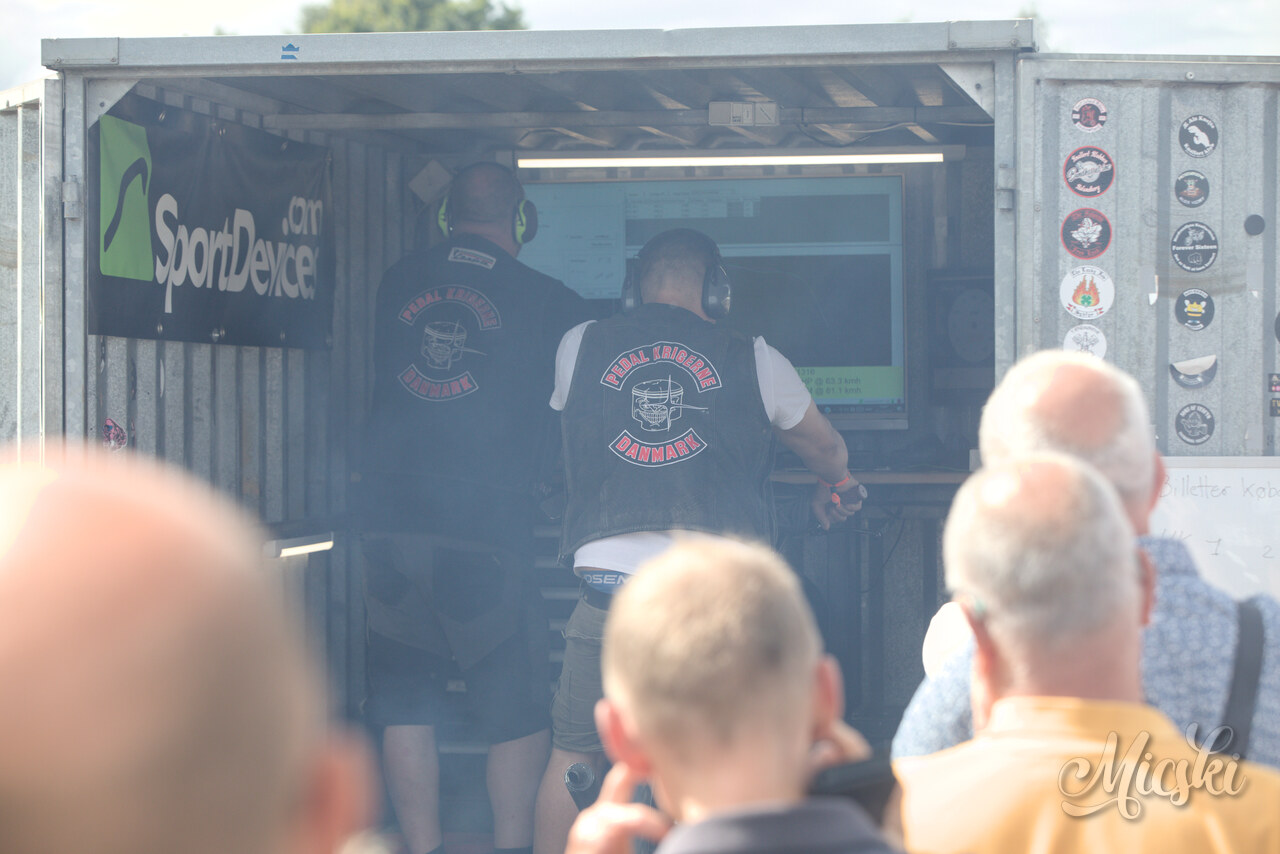






If you would like to obtain a copy of one or more pictures in high resolution, feel free to contact me via email. You will find my contact information below.
Today is international system administrator appreciation day. Take some time to thank all those people, who work behind the scenes and screens to maintain the advanced UNIX computer systems, that keeps us all online, while keeping our data available, secure and recoverable, when disaster strikes. Thanks.
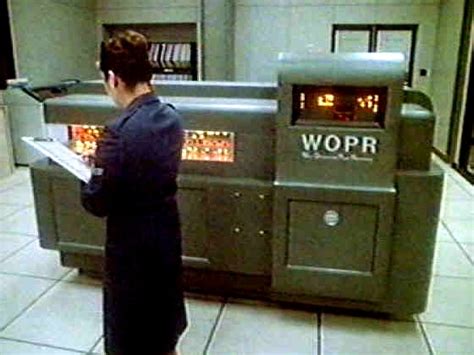
The WOPR mainframe, that stages a massive Soviet first strike, in the movie WarGames from 1983 with Matthew Broderick as David Lightman.
It seems, that RCS is coming to mobile phones without user approval. With it comes annoying features, scams and hackers, that abuse its insecure features. What is RCS? How is it turned off?
RCS is short for rich communication services and is a communication protocol standard for phones. In IT, rich is unfortunately not necessarily better. In this context, rich means, that plain text SMS is replaced by rich text RCS web links preview, buttons, photos, videos, sounds, animations, read receipts, typing indicators, artificial intelligence, smileys, group chats, metadata and similar features. All non-optional forced stuff. These rich features are not only annoying. They are also a gift to scammers and hackers, that will abuse weaknesses in this massively larger attack surface.
If you use the default Samsung Messages, you might want to migrate to Google Messages at this point. Samsung will be discontinuing their messages app.
Open settings, either in the messages app or in system settings, and look for RCS chat and messages. RCS chat, RCS messages and RCS features should be turned off, so only plain text messages remain. Google Messages will indicate SMS, when sending a message.
When the user wishes to turn off the RCS chat in Google Messages, the warning “You will be removed from all RCS group chats after 30 days” appears. The user simply has to spend 30 days in chat groups, that was never signed up for. Its just one example of insecure bad design in RCS chat.
SMS is still widely used for phone number verification, two factor authentication, communication with older electronic devices and old school humans. SMS should not be used for general communication, because it was intended for short messages and does not protect privacy. This would require encryption and conservative default settings.
While Poudriere was building Electrum 4.6.2 for FreeBSD 14.4, the building stopped, when dependency check for Asyncio NOSTR client failed. The issue seems to be a version requirement. I tested building with Python 3.11 and 3.12. If you have tips, I would be happy to learn more about, how to fix this issue.
Extracting py312-electrum-aionostr-0.1.0: .......... done
py312-electrum-4.6.2 depends on package: py312-electrum-aionostr>=0.0.11,<0.1 - not found
make: stopped making "run-depends" in /usr/ports/finance/electrum
Technically, the dependency version check can be changed, which will solve the issue. This can be done in a wrapper script or manually. In both methods, the version requirement in the Makefile is substituted with a higher limit. Poudriere will compile it with no issues and Electrum runs right out. I have not tested actual connection and transaction operations.
# sed -i '' -E 's/electrum-aionostr>=0\.0\.11,<0\.1/electrum-aionostr>=0.0.11,<0.2/' $port/Makefile
However, Electrum 4.6.2 was released 2025-08-25 and has since reached 4.7.2. A better solution is probably to download and verify Electrum from the official website and then running it without installing. Electrum is a Python application and should run, if Python and necessary dependencies are installed. The procedure is published on the official website.
$ tar -xvf Electrum-4.7.2.tar.gz
$ python3 Electrum-4.7.2/run_electrum
This page is about how to install and use SpamAssassin for Sendmail on FreeBSD. Tested on FreeBSD 14.3.
SpamAssassin is a filter system, that can detect spam mail. SpamAssassin is an open source project, that has been offered by Apache since 2001. The filter can be implemented as a mail filter for mail servers, such as Sendmail. Such a mail filter is also known as a milter. Unfortunately, the official documentation and the FreeBSD install instructions are rather old and outright wrong.
https://spamassassin.apache.org
SpamAssassin reads the headers of email and use a set of rules to detect known spam characteristics and apply a spam score to the headers. Email clients can then use this score to identify the email as spam and move it to another inbox for spam or trash.
Below, is an example of SpamAssassin score headers in a filtered message, that spoofed a Google GMail account and presented a crypto extortion scheme.
X-Spam-Checker-Version: SpamAssassin 4.0.2 (2025-08-27) on wopr
X-Spam-Flag: YES
X-Spam-Level: ********************
X-Spam-Status: Yes, score=20.7 required=3.8 tests=BITCOIN_EXTORT_01,
        BITCOIN_SPAM_05,DKIM_ADSP_CUSTOM_MED,FORGED_GMAIL_RCVD,
        FREEMAIL_ENVFROM_END_DIGIT,FREEMAIL_FROM,GB_HASHBL_BTC,HELO_MISC_IP,
        NML_ADSP_CUSTOM_MED,RCVD_IN_BL_SPAMCOP_NET,RCVD_IN_DNSWL_BLOCKED,
        RCVD_IN_MSPIKE_BL,RCVD_IN_MSPIKE_L5,RCVD_IN_VALIDITY_CERTIFIED_BLOCKED,
        RCVD_IN_VALIDITY_RPBL_BLOCKED,RCVD_IN_VALIDITY_SAFE_BLOCKED,
        RCVD_IN_ZEN_BLOCKED_OPENDNS,RDNS_NONE,SPOOFED_FREEMAIL,
        SPOOFED_FREEMAIL_NO_RDNS,SPOOF_GMAIL_MID,SUBJ_ALL_CAPS,URIBL_BLOCKED,
        URIBL_DBL_BLOCKED_OPENDNS autolearn=spam autolearn_force=no
        version=4.0.2
# pkg install spamass-milter
Check the default configuration.
# cat /usr/local/etc/mail/spamassassin/init.pre | grep -v '^#' | grep -v '^$'
enable_compat welcomelist_blocklist
loadplugin Mail::SpamAssassin::Plugin::URIDNSBL
# cat /usr/local/etc/mail/spamassassin/local.cf | grep -v '^#' | grep -v '^$'
ifplugin Mail::SpamAssassin::Plugin::Shortcircuit
endif # Mail::SpamAssassin::Plugin::Shortcircuit
# sa-update && sa-compile
You can filter mail folders through SpamAssassin and inspect the results in the mail client. In this example, ham and spam mail folders for Alpine is used for testing SpamAssassin manually. Alpine use the MBOX format.
$ ls mail
Ham     Spam
$ spamassassin --mbox < mail/Ham > mail/SpamAssassin
$ spamassassin --mbox < mail/Spam >> mail/SpamAssassin
$ alpine
The spam mail folder can later be used for training SpamAssassin, which can scan it regularly.
You can also save ham and spam messages as plain-text files and filter those through SpamAssassin.
Settle on a spam score for future use in the configuration. The default is 5. If DNS block lists are unavailable due to IP address range block or rate limiting, which is common, I recommend a score closer to 3,8.
If you want SpamAssassin to learn from human marked spam, then create a directory for such database.
# mkdir -m 700 -p /usr/local/etc/spamassassin
# nano /usr/local/etc/mail/spamassassin/init.pre
# cat /usr/local/etc/mail/spamassassin/init.pre | grep -v '^#' | grep -v '^$'
loadplugin Mail::SpamAssassin::Plugin::URIDNSBL
enable_compat welcomelist_blocklist
# nano /usr/local/etc/mail/spamassassin/local.cf
# cat /usr/local/etc/mail/spamassassin/local.cf | grep -v '^#' | grep -v '^$'
score RDNS_NONE 2.8
required_score 3.2
use_bayes 1
bayes_auto_learn 1
body_part_scan_size 200000
rawbody_part_scan_size 2000000
ifplugin Mail::SpamAssassin::Plugin::Shortcircuit
bayes_path        /usr/local/etc/spamassassin/bayes
bayes_auto_learn  1
endif # Mail::SpamAssassin::Plugin::Shortcircuit
If DNS block lists are unavailable due to IP address range block or rate limiting, which is common, then you might want do disable the use of DNS. This is probably especially a good practice for higher volume mail servers to maintain speed.
Test the Bayes learning and the new settings. It is important, that the mail box format is indicated.
# sa-learn --spam --mbox /home/lightman/mail/Spam
If the spam score reaches 10, then the message will be rejected at the port.
# nano /etc/rc.conf
# grep spam /etc/rc.conf
spamd_enable="YES"
spamd_flags="-c --max-children=10"
spamass_milter_enable="YES"
spamass_milter_socket="/var/run/spamd/spamass-milter.sock"
spamass_milter_flags="-r 10 -f -u spamd -p ${spamass_milter_socket}"
# find /usr/local/etc/rc.d -name '*spam*'
/usr/local/etc/rc.d/sa-spamd
/usr/local/etc/rc.d/spamass-milter
# service sa-spamd start
# service spamass-milter start
# ls -l /var/run/spamd
total 1
srw-r--r--  1 root  wheel  0 Mar 12 02:09 spamass-milter.sock
-rw-r--r--  1 root  spamd  5 Mar  9 18:19 spamd.pid
# cd /etc/mail
# nano $(hostname).mc
# grep spamassassin $(hostname).mc
INPUT_MAIL_FILTER(`spamassassin',`S=local:/var/run/spamd/spamass-milter.sock, F=T, T=C:15m;S:4m;R:4m;E:10m')
# make && make install
# service sendmail restart
# cd
# nano bin/spamassassin-update
# cat bin/spamassassin-update
#!/bin/sh
sa-update && sa-compile
service sa-spamd restart
service spamass-milter restart
sa-learn --spam /home/lightman/mail/Spam
# chmod 700 bin/spamassassin-update
# spamassassin-update
# nano /etc/crontab
# grep spam /etc/crontab
37  13  *   *   5   root /root/bin/spamassassin-update >/dev/null 2>&1
# service cron restart
I am still testing this feature. If you have tips, let me know. Thanks.
If the server runs Dovecot IMAP server, or a similar IMAP server, it might support automatic handling of spam mail by reading mail headers, creating user spam folders and moving spam into those. The Pigeonhole Sieve plug-in for Dovecot can do this.
# pkg install dovecot-pigeonhole
Create the global script and compile it.
# mkdir -p /usr/local/etc/dovecot/sieve
# nano /usr/local/etc/dovecot/sieve/global.sieve
# cat /usr/local/etc/dovecot/sieve/global.sieve
require ["fileinto", "imap4flags"];
if header :contains "X-Spam-Flag" "YES" {
  fileinto "Spam";
  stop;
}
# sievec /usr/local/etc/dovecot/sieve/global.sieve
Configure Dovecot.
# nano /usr/local/etc/dovecot/dovecot.conf
# cat /usr/local/etc/dovecot/dovecot.conf | grep -v '^#' | grep -v '^$' | tail -n 6
protocol lda {
  mail_plugins = sieve
}
plugin {
  sieve_global_path = /usr/local/etc/dovecot/sieve/global.svbin
}
# service dovecot restart
You can now configure your mail client for handling spam. The spam features of mail clients include looking in mail headers and using this information to move the mail to a spam folder or deleting it outright.
In Alpine, you can go to “Setup”, “Rules” and “Filters”. Here, you can create filtering rules. Create a new filter. If it has an “X-Spam-Status” mail header and the the value is “Yes”, then move the message to the “Spam” folder. You can also use other spam headers and options.
X-Spam-Checker-Version: SpamAssassin 4.0.2 (2025-08-27) on wopr
X-Spam-Flag: YES
X-Spam-Level: ********************
X-Spam-Status: Yes, score=20.7 required=3.8 tests=BITCOIN_EXTORT_01,
        BITCOIN_SPAM_05,DKIM_ADSP_CUSTOM_MED,FORGED_GMAIL_RCVD,
        FREEMAIL_ENVFROM_END_DIGIT,FREEMAIL_FROM,GB_HASHBL_BTC,HELO_MISC_IP,
        NML_ADSP_CUSTOM_MED,RCVD_IN_BL_SPAMCOP_NET,RCVD_IN_DNSWL_BLOCKED,
Check for issues by following and scanning the system mail log, investigate specific messages and adjust configuration as necessary.
# tail -f /var/log/maillog
# grep -e spamc -e spamass /var/log/maillog
This page describes the procedure for comparing images side by side by creating a montage with ImageMagick.
MONTAGE is a utility, that is a part of ImageMagick. It can arrange images side by side and save it as a single composite image. This is used for comparing the colors or quality of cameras, filters, editing, post processing and image technology.
$ man montage
NAME
  montage - create a composite image by combining several separate
  images. The images are tiled on the composite image optionally adorned
  with a border, frame, image name, and more.
SYNOPSIS
  magick montage input-file[s] [options] output-file
OVERVIEW
  The montage program is a member of the ImageMagick(1) suite of tools.
  Use it to create a composite image by combining several separate
  images. The images are tiled on the composite image optionally adorned
  with a border, frame, image name, and more.

In this example, several images are given as input to MONTAGE. Each images is automatically rotated according to EXIF data, resized and cropped to 1:1 aspect ratio, annotated with the filename and camera model EXIF tag in bottom right corner, aligned in tiles 3×2, scaled with Lanczos filter and saved in high quality.
montage *.jpg \
  -auto-orient \
  -resize 1000x1000^ \
  -gravity center \
  -extent 1000x1000 \
  -font DejaVu-Sans \
  -fill white \
  -pointsize 36 \
  -background black \
  -gravity southeast \
  -annotate +20+20 "%t %[EXIF:Model]" \
  -tile 3x2 \
  -geometry +0+0 \
  -filter Lanczos \
  -quality 95 \
  montage.jpg
Create test input images.
$ magick -size 500x500 canvas:"#FFB3BA" 1.jpg
$ magick -size 500x500 canvas:"#FFDFBA" 2.jpg
$ magick -size 500x500 canvas:"#FFFFBA" 3.jpg
$ magick -size 500x500 canvas:"#BAFFC9" 4.jpg
$ magick -size 500x500 canvas:"#BAE1FF" 5.jpg
$ magick -size 500x500 canvas:"#D5BAFF" 6.jpg
Create montage.
$ montage ?.jpg \
  -auto-orient \
  -resize 1000x1000^ \
  -gravity center \
  -extent 1000x1000 \
  -font DejaVu-Sans \
  -fill black \
  -pointsize 36 \
  -gravity southeast \
  -annotate +20+20 "%t" \
  -tile 3x2 \
  -geometry +0+0 \
  -filter Lanczos \
  -quality 80 \
  montage.jpg
View montage.
$ geeqie montage.jpg
This page is about how to send confidential information to a non-technical recipient with the default ZIP utility, that is well-known and widely supported. This is an alternative to PGP and encryption keys, which require more technical skills and are less well-known nor supported.
ZIP is a compression and file packaging utility for FreeBSD, UNIX, Linux, Windows and MacOS operating systems. It comes with optional password encryption for compressing, packaging and protecting confidential information and documents.
Be aware, that the encryption method in ZIP is not safe against motivated and competent attacks. It is just meant to be assumed as a moderate protection like a door lock. A more secure method is used in 7-ZIP, which also produce ZIP files, but could be less widely supported.
Prepare the confidential message or document. In this example, it is a plain text file, but it could be a PDF document or any other type of document. Make sure, that the name of the file does not contain confidential information. It will not be protected.
$ cat confidential.txt
Dear Lightman, your password on the WOPR server has expired and has been changed to Pencil.
The confidential message is then encrypted with a password by the default compression and file packaging utility ZIP.
$ zip -e confidential confidential.txt
ZIP will create a ZIP file, that has been encrypted with the given password. It can only be decrypted by a recipient, who has the password.
$ ls confidential.*
confidential.txt
confidential.zip
You can now send the encrypted ZIP file via email or other insecure transmission method. You can also give a short instruction in how to open the ZIP file and that the password will be sent via another communication channel.
You should send the password via another communication channel to the recipient.
The recipient can now open and decrypt the ZIP file by entering the shared password. This is done with the companion UNZIP utility or a similar built-in utility.
$ unzip confidential.zip
Archive: confidential.zip
extracting: confidential.txt
Enter password:
$ cat confidential.txt
Dear Lightman, your password on the WOPR server has expired and has been changed to Pencil.
This is the procedure for how to fix “X-Authentication-Warning” and “owned process doing -bs” in email headers by configuring trusted users of local submission to Sendmail. Tested with Sendmail 8.18 on FreeBSD 13.5 and 14.3. Published 2025-10-29.
Continue reading “How to fix “X-Authentication-Warning” and “owned process doing -bs” in Sendmail headers”